Introduction

Welcome back to our MySQL tutorial series. In this article, we will explore how to create, alter, and drop databases using MySQL Workbench. MySQL Workbench is a powerful visual tool that simplifies the management of MySQL databases and provides an intuitive interface for performing various tasks.

Understanding Databases and Tables Workbench?

Before we proceed, let's quickly recap the concepts of databases and tables. A database acts as a container for organizing and storing related data, while tables are the individual structures within the database that hold the actual data.

Visual SQL Editor

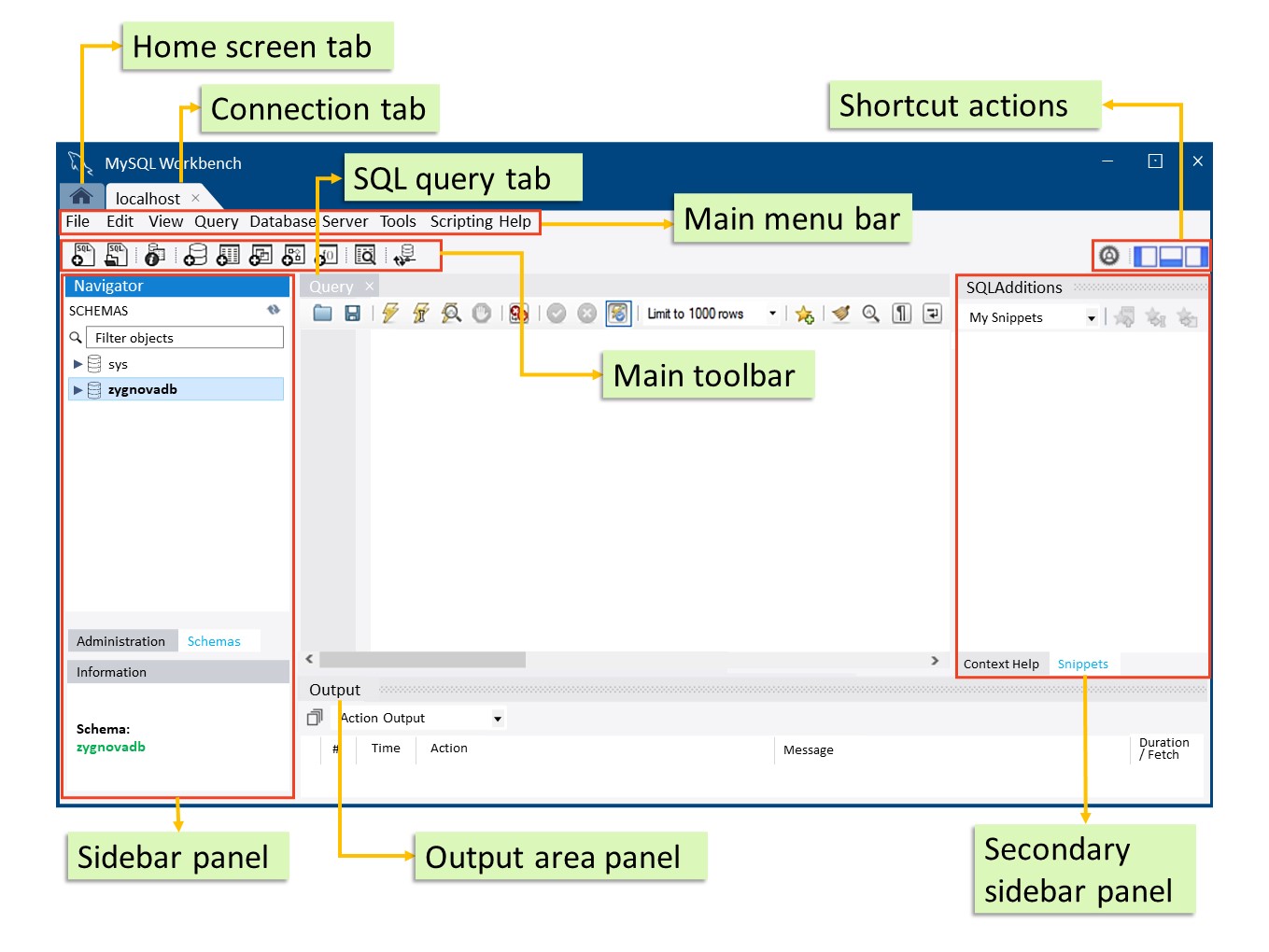
Also, it’s important to understand the basic structure of the visual SQL editor. Let us go through the editor by referring to the following diagram.

Visual SQL Editor
1. Home Screen Tab

The Home Screen Tab in MySQL Workbench is the central hub where you can access various features, tools, and resources related to your MySQL databases. It serves as a starting point for managing your connections, accessing documentation, and performing common tasks.

2. Connection Tab

The Connection Tab in MySQL Workbench is where you manage your database connections. It provides a list of configured MySQL server connections, allowing you to quickly access and interact with different databases. From this tab, you can create new connections, edit existing connections, and connect to databases.

3. SQL Query Tab

The SQL Query Tab in MySQL Workbench is where you can write and execute SQL queries. It provides an editor where you can enter SQL statements to retrieve, modify, or manipulate data in your databases. This tab is particularly useful for writing custom queries and performing advanced database operations.

4. Main Menu Bar

The Main Menu Bar in MySQL Workbench is located at the top of the application window. It contains various menus such as File, Edit, View, Database, Tools, and Help. Each menu provides a dropdown list of options that allow you to perform specific actions and access different features of MySQL Workbench.

5. Main Toolbar

The Main Toolbar in MySQL Workbench is situated below the main menu bar. It consists of a set of icons representing frequently used actions and shortcuts. These icons provide quick access to essential functions such as opening a new SQL tab, executing queries, managing connections, and more.

6. Sidebar Panel

The Sidebar Panel in MySQL Workbench is a vertical panel located on the left side of the application window. It provides a compact overview of the various components and objects within your database. It typically displays collapsible sections for schemas, tables, views, stored procedures, and other database elements. The sidebar panel allows you to navigate and explore the structure of your database easily.

7. Secondary Sidebar Panel

The Secondary Sidebar Panel is another vertical panel in MySQL Workbench, located to the right of the Sidebar Panel. It provides additional context-sensitive information and options based on the selected object or tab. For example, when you select a table in the Sidebar Panel, the Secondary Sidebar Panel may display details about the table's structure, indexes, and foreign keys.

8. Output Area Panel

The Output Area Panel in MySQL Workbench is located at the bottom of the application window. It displays the output, messages, and results of executed SQL queries, database operations, and other actions. This panel provides valuable feedback and information about the execution status and outcomes of your commands.

9. Shortcut Actions

Shortcut Actions in MySQL Workbench refer to various quick actions and keyboard shortcuts available within the application. These shortcuts allow you to perform common tasks efficiently without needing to navigate through menus or panels. Examples of shortcut actions include executing the currently selected query, switching between tabs, and managing database connections.

Overall, MySQL Workbench's visual editor elements provide a user-friendly and intuitive interface for managing databases, writing SQL queries, and accessing essential features and tools. They enable efficient navigation, organization, and interaction with your MySQL databases, enhancing your productivity as a database developer or administrator.

Creating a Database in MySQL Workbench

Now, let's learn how to create a database using MySQL. To illustrate the process, we'll use a dataset of employees from a company called ZygnovaTech. Here is the information we intend to store in our database:

Company: ZygnovaTech
First name Last name Salary Date Hired Status
John Smith 5000 2020-01-15 Active
Emily Johnson 6000 2019-05-20 Active
Michael Davis 4500 2021-02-10 Active
Sophia Martinez 5500 2022-03-05 Active
Daniel Thompson 4000 2023-01-02 Inactive

To create the database for the above information, let's begin by creating a database using MySQL Workbench. Follow these steps:

1. Launch MySQL Workbench.

2. Establish a connection to a MySQL server by clicking on the "+" icon in the "MySQL Connections" tab and providing the necessary connection details (hostname, port, username, and password).

Establish a connection to a MySQL server

3. Once connected, navigate to the "SQL Editor" tab in MySQL Workbench.

Navigate to the SQL Editor tab in MySQL Workbench

4. In the SQL Editor, enter the following SQL statement to create a database:

CREATE DATABASE zygnovadb;

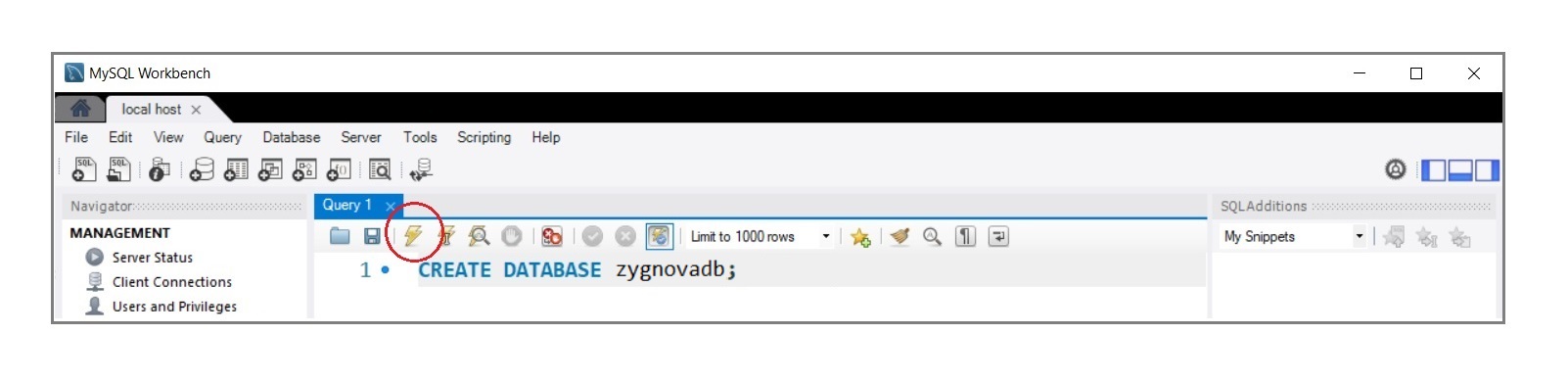
5. Click the "Execute" button or press Ctrl+Enter to execute the SQL statement and create the database.

Click the

Using A Database

When you look at the side panel in “Schema” tab, you will see an existing database called “sys”. “sys” is an internal database that MySQL uses. We want to make sure that we’re using the database that we just created (zygnovadb). To use the database:

1. Type in the following code in the SQL Editor:

USE zygnovadb;

2. Then, execute the statement.

Dropping A Database

Let’s say that we already have an existing database called zygnovadb. To drop a database using MySQL Workbench's SQL Editor, follow these steps:

1. Launch MySQL Workbench and establish a connection to your MySQL server.

2. In MySQL Workbench, navigate to the SQL Editor by clicking on the "SQL" icon on the top toolbar or selecting "SQL Editor" from the "Database" menu.

3. Ensure that the correct database is selected. You can use the following command to switch to the desired database:

USE zygnovadb;

4. Once you have selected the database, execute the following command to drop it:

DROP DATABASE zygnovadb;

5. To execute the command, either click the "Execute" button in the SQL Editor toolbar or press Ctrl+Enter.

6. A confirmation prompt will appear. Review the prompt to ensure you are dropping the correct database, as this action is irreversible and will permanently delete all data in the database.

7. If you are certain that you want to proceed, click "OK" to drop the database.

8. The SQL Editor will display the output indicating the success or failure of the DROP DATABASE operation.

9. Verify that the database has been dropped by checking the list of databases in the sidebar or by using the command SHOW DATABASES;.

Please exercise caution when using the DROP DATABASE command, as it permanently deletes the database and its contents. Make sure to double-check that you are dropping the intended database to avoid accidental data loss.

Setting Database to read-only

To set a database to read-only using MySQL Workbench's SQL Editor, you can follow these steps:

1. Launch MySQL Workbench and establish a connection to your MySQL server.

2. In MySQL Workbench, navigate to the SQL Editor by clicking on the "SQL" icon on the top toolbar or selecting "SQL Editor" from the "Database" menu.

3. Ensure that the correct database is selected. You can use the following command to switch to the database you want to set to read-only:

USE zygnovadb;

4. Once you have selected the database, execute the following command to set it to read-only:

SET GLOBAL read_only = ON;

5. This command sets the global read-only variable to ON, making the entire database read-only. Note that this affects all sessions and users accessing the database.

6. To execute the command, either click the "Execute" button in the SQL Editor toolbar or press Ctrl+Enter.

7. The SQL Editor will display the output indicating the success or failure of the SET command.

8. Verify that the database is set to read-only by attempting to perform any write operations (e.g., INSERT, UPDATE, DELETE) on the database. These operations should now be denied.

Please note that setting a database to read-only affects all users and sessions connected to the MySQL server. It is a global setting that restricts write operations on the specified database. If you need to allow write operations again, you can execute the following command to turn off the read-only mode:

SET GLOBAL read_only = OFF;

Again, exercise caution when using these commands, as they can have significant implications on your database operations.
Summary

In this MySQL Workbench tutorial, we explored the process of creating, altering, and dropping databases. MySQL Workbench provides a user-friendly visual interface that simplifies these tasks. We also discussed the essential elements of the visual SQL editor, including the Home Screen Tab, Connection Tab, SQL Query Tab, Main Menu Bar, Main Toolbar, Sidebar Panel, Secondary Sidebar Panel, Output Area Panel, and Shortcut Actions.

To create a database, we used the example of a company called ZygnovaTech and created a database named "zygnovadb" using the SQL Editor in MySQL Workbench. We also covered how to switch to and use a database by executing the USE statement. Additionally, we learned how to drop a database, being cautious about irreversible data loss.

Furthermore, we explored how to set a database to read-only mode. By executing the SET GLOBAL read_only = ON; command, we restricted write operations on the database. It's important to exercise caution and understand the implications before making a database read-only.

As you progress in your MySQL journey, these foundational concepts and operations will help you effectively manage databases using MySQL Workbench.

End Of Article

End Of Article